
Overview
Large documents often require different processing strategies than smaller documents. This workflow allows you to:- Automatically identify large documents based on page count
- Label them for separate processing
- Process them on a schedule rather than immediately
- Prevent the standard data capture assistant from processing large documents
Workflow Components
The large document processing workflow consists of three main components:- Large Document Labeler - Identifies and labels large documents in the Prepare Document assistant
- Scheduled LLM Data Labeling Job - Processes large documents on a schedule
- Modified Subscription - Prevents the standard assistant from processing large documents
Step 1: Configure the Large Document Labeler
Add the Large Document Labeler module to your Data Flow’s Prepare Document assistant.Configuration Options
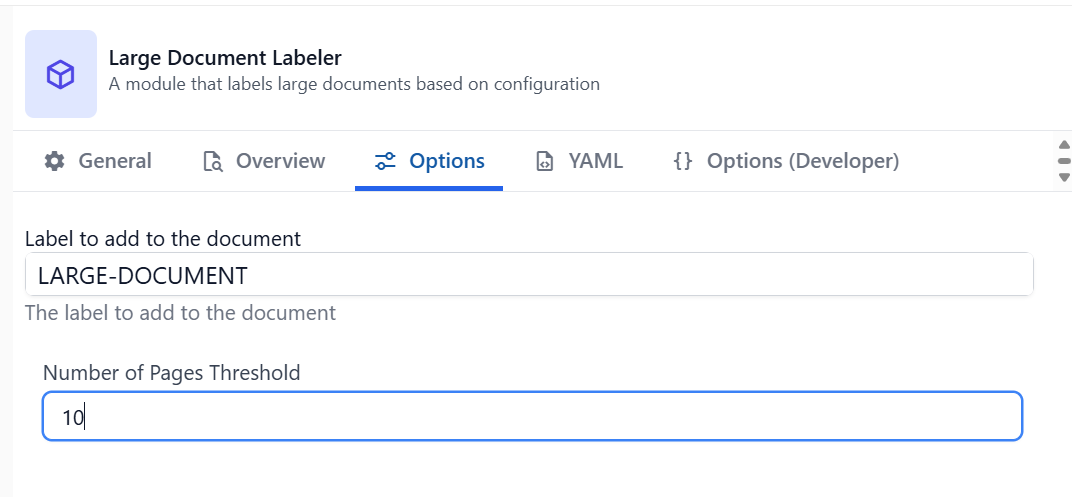
Label to add to the document
The label that will be applied to documents that meet or exceed the page threshold. This label will be used to identify large documents for scheduled processing. Example:LARGE-DOCUMENT
Number of Pages Threshold
The minimum number of pages required for a document to be considered “large” and receive the label. Default:10
Step 2: Create a Scheduled Job for Large Document Processing
Create a new Scheduled Job using the Scheduled Kodexa LLM Data Labeling module. This job will run on a schedule to process documents that have been labeled as large.Configuration Options
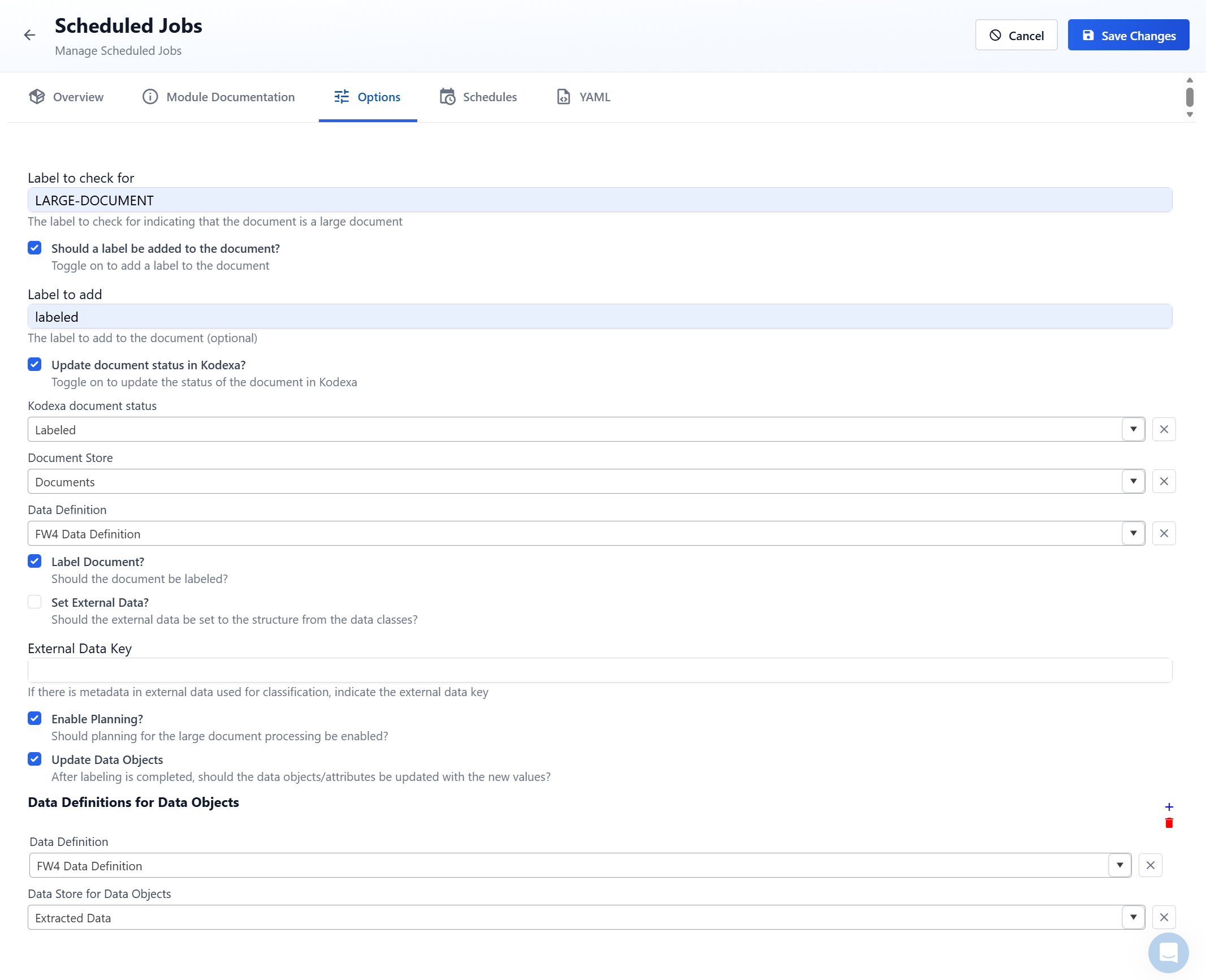
Label to check for
Required The trigger label that indicates a document should be processed by this scheduled job. This should match the label configured in the Large Document Labeler module. Example:LARGE-DOCUMENT
This ensures only documents identified as large will be processed by this scheduled job.
Should a label be added to the document?
Optional Toggle this on if you want to add an additional label to the document after processing completes. This is useful for tracking which documents have been processed.Label to add
Optional (Required if “Should a label be added” is enabled) The label to apply to the document after successful processing. This label can be used in subscriptions to prevent reprocessing and to trigger downstream workflow steps. Example:LABELED or LARGE-DOC-PROCESSED
Update document status in Kodexa?
Optional Toggle this on if you want to update the document’s status in Kodexa after processing completes. This provides visibility into the document’s processing state.Kodexa document status
Optional (Required if “Update document status” is enabled) The status to set on the document after processing. This should align with your organization’s document status workflow.Document Store
Required The document store where documents will be retrieved from for processing. This should be the same document store used in your project.Data Definition
Optional The taxonomy/data definition that defines what information to extract from the large documents. Select the appropriate data definition for your use case.Label Document?
Default:true
When enabled, the document will be labeled based on the extraction results from the data definition. Enable this if you do not have a transformer in the Data Flow that will label the document.
Set External Data?
Default:false
When enabled, the extracted structured data will be stored in the document’s external data field. This makes the extracted data available to other parts of your workflow.
External Data Key
Optional If you need to use existing metadata from external data for classification, specify the key here. This allows the module to access metadata during the classification process.Enable Planning?
Default:false
Enables advanced planning capabilities for processing large or complex documents. This feature helps optimize the processing strategy for particularly challenging documents.
Update Data Objects
Default:false
When enabled, the module will automatically update related data objects in the document with the extracted values after processing completes.
Data Definitions for Data Objects
Optional (Required if “Update Data Objects” is enabled) A list of data definitions that describe the structure of data objects to update. This tells the module what data schema to use when updating external data stores.Data Store for Data Objects
Optional (Required if “Update Data Objects” is enabled) The table store where data objects are stored and will be updated with the extracted values.Schedule Configuration
Configure the schedule for how frequently the job should check for and process large documents.Step 3: Modify the Standard Labeling Assistant Subscription
To prevent the standard data labeling assistant (often named “Core Data Capture” or “Kodexa AI”) from processing large documents, you need to modify its subscription to exclude documents with the large document label.Locate the Assistant
Find the assistant in your Data Flow that contains the Kodexa LLM Data Labeling module.Update the Subscription
Modify the assistant’s subscription to exclude:- Documents with the large document label (from the Large Document Labeler)
- Documents with the completion label or document status set by the Scheduled Job
Workflow Summary
Once configured, the workflow operates as follows:Prepare Document
The Large Document Labeler checks the page count:
- If pages >= threshold: Document receives the large document label (e.g.,
LARGE-DOCUMENT) - If pages < threshold: Document proceeds normally
Standard Assistant Processing
- Small documents: Processed immediately by the standard Kodexa LLM Data Labeling assistant
- Large documents: Skipped due to subscription filter
Scheduled Job Execution
Runs every X minutes (e.g., 10 minutes):
- Finds documents with the trigger label (e.g.,
LARGE-DOCUMENT) - Processes them using the scheduled LLM data labeling configuration
- Adds completion label (e.g.,
LABELED) or updates status
Troubleshooting
Large Documents Not Being Processed
- Verify the Large Document Labeler is in the Prepare Document assistant
- Check that the page threshold is set correctly
- Confirm the scheduled job is Active
- Verify the trigger label in the scheduled job matches the label from the Large Document Labeler
Large Documents Being Processed Twice
- Check the subscription on the standard assistant includes the exclusion filters
- Verify the completion label is being added by the scheduled job
- Ensure the subscription excludes both the trigger and completion labels
Scheduled Job Not Running
- Confirm the job is marked as Active
- Verify a schedule is configured
- Check the schedule syntax is correct
- Review the Scheduled Job History for errors